检测到浏览器语言为中文,点此切换到中文页面
How to Share Files in 3 Simple Steps?
1
Install the App
Download and launch the 1001 TVs app on both devices.
2
Connect Devices
Tap "Send Files" on your phone and connect to your PC.
3
Send Files
Select what you want to share — no cables, no size limits, and no waiting.
Private, Fast & Flexible File Sharing
FAST TRANSFER
Transfer large files at high speed over Wi-Fi — no cables, no cloud, no delays. Files move instantly and stay within your local network.
fast-transfers
ZERO BARRIERS
Cross-platform and private. Seamlessly share files between Windows/macOS and Android/iOS — safely and easily, all on the same Wi-Fi.
zero-barriers
Use Cases
Photos Backup
Video Export
File Transfer
Secure & Effortless Photo Backup
Free up your phone storage and keep your memories safe — without the cloud, without logging in.

Whether it’s photos, videos, music, or more, 1001 TVs lets you wirelessly back up your entire gallery to your Windows or Mac in one tap.

No internet required. No size limits. Just fast, private transfers on your local Wi-Fi.
photos-backup
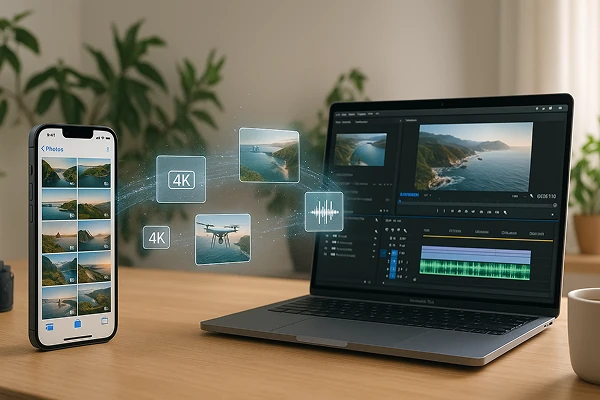
Reliable Video Export — Even for Large 4K Files
As video quality keeps improving, so does file size — making it harder to move your footage around.

Whether it's drone clips, lectures, or 4K vlogs, large files often fail to send via AirDrop or take forever with cables.

1001 TVs gives you a better way: transfer videos wirelessly from your phone to your computer without compression. No cloud, no cables, and no failed transfers — just smooth, secure exporting over your local Wi-Fi.
video-export
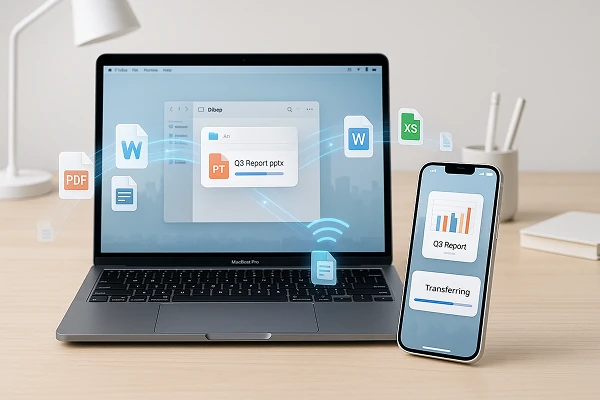
Batch File Transfer — Send Everything at Once
Need to send a folder full of photos, videos, or documents?

1001 TVs lets you transfer files in bulk — with no size or quantity limits. As long as your receiving device has enough space, you're good to go.

Whether it’s images, videos, audio, or work files, everything is sent wirelessly over your local network — fast, private, and without any quality loss.
file-transfer
Download
FAQs
Which devices can transfer files with 1001 TVs?
1001 TVs supports local file transfer across Windows, macOS, iOS, and Android devices. Both devices should use the latest app version; the available send and receive directions can vary by platform.
What kinds of files can I transfer?
You can transfer photos, videos, music, documents, and other common file types between supported devices. This is useful for backing up a phone, exporting large videos, or moving work files without a cable.
Can I transfer large files or multiple files at once?
Yes. 1001 TVs supports large files and batch transfers without a fixed file-size or quantity limit, provided the receiving device has enough available storage. Transfer time depends on the total file size, network conditions, and device performance.
Does file transfer reduce photo or video quality?
No. File Transfer is designed to move the original file without media compression, so photos and videos retain their original quality and resolution.
How does the 1001 TVs File Transfer subscription work?
1001 TVs offers a limited-time free trial for File Transfer. After the trial, weekly, monthly, yearly, and lifetime plans are available; paid membership is only needed on the sending device. Local prices are shown in the app, and recurring subscriptions can be managed or canceled through the store or account used for purchase.
Are my files sent through the cloud?
No. Your files are transferred directly between devices over the local network and are not sent through cloud storage by 1001 TVs.
How can I contact support or get help?
Please contact us at 1001tvs@nero.com.